Business Wi-Fi Mesh Extender Guide
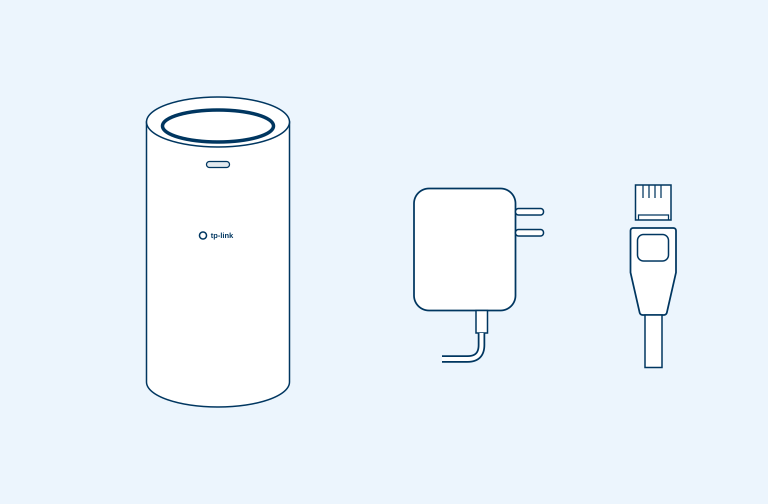
What’s in the box
- 1 x 2degrees Wi-Fi mesh extender
- 1 x Power adapter
- 1 x Ethernet cable
Step 1
Plug in and power up
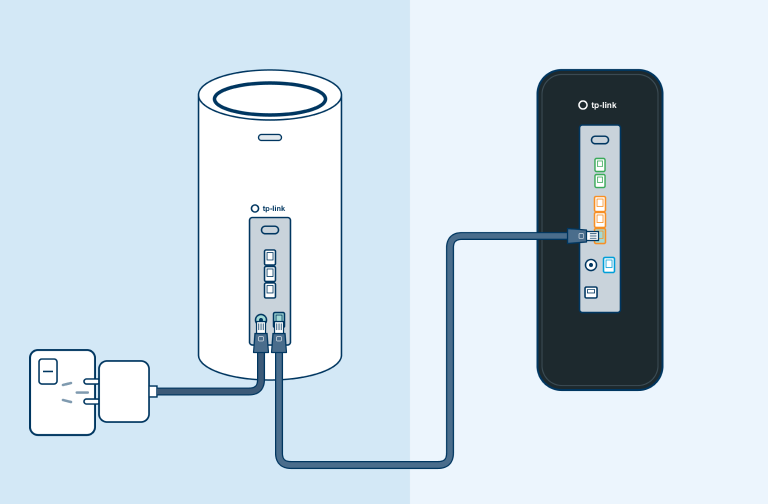
- Ensure the Wi-Fi mesh extender is next to the modem.
- Plug the power adaptor into the round power port on the back of the Wi-Fi mesh extender and turn the power on at the wall.
- Connect one end of the ethernet cable into the LAN port on the modem and the other end to the WAN port on the Wi-Fi mesh extender
Step 2
Connect and pair
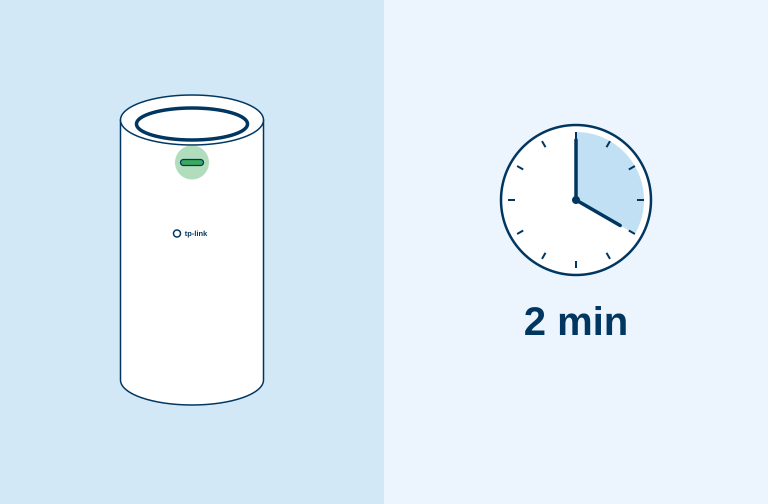
- Wait 2 minutes for the Wi-Fi mesh extender to pair with your modem. The front LED light on the Wi-Fi mesh extender will go green once connected.
- Unplug the ethernet cable.
- Turn power off at the wall and unplug the power adaptor.
LED light
The LED light on your Wi-Fi mesh extender indicates the status of your connection.
- Solid Yellow: Wi-Fi extender mesh link quality is weak.
- Flashing Yellow: Wi-Fi extender is starting or resetting.
- Solid Blue: Wi-Fi extender is not connected.
- Flashing Blue: Wi-Fi extender is ready for a setup.
- Fast Flashing Blue: Wi-Fi extender is establishing a mesh connection with modem.
- Solid Green: Wi-Fi extender is set up and connected.
- Flashing Green: Wi-Fi extender is set up and connected.
Step 3
Move to a desired location
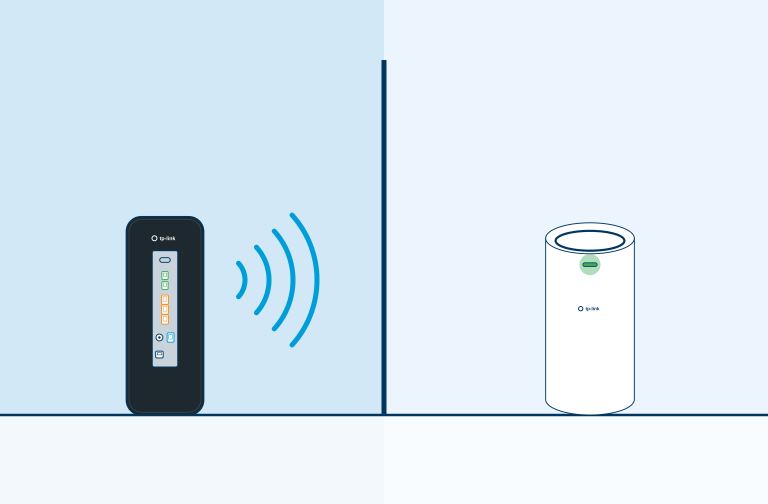
- Move the Wi-Fi mesh extender to your desired location, ensuring the location has good Wi-Fi coverage.
- The Wi-Fi mesh extender will automatically connect via Wi-Fi and the front LED light will be green once connected.
Step 4
Other pairing methods
WPS Pairing method
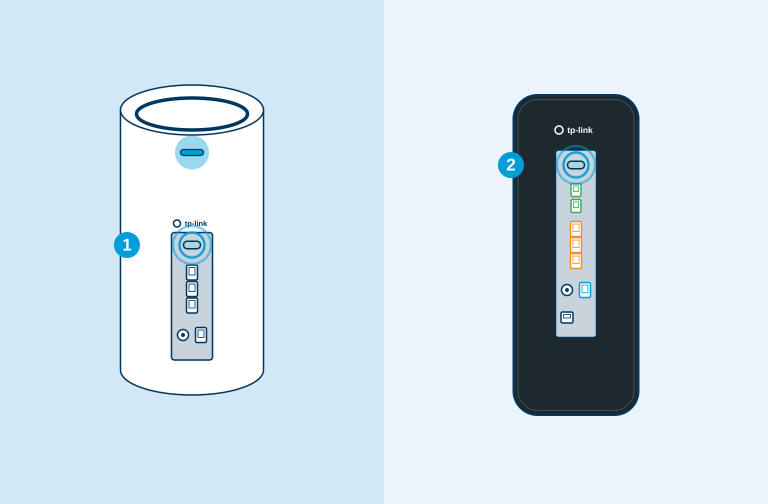
- Press the WPS button on the back of the Wi-Fi mesh extender, then press the WPS button on the back of the modem.
- The LED on the Wi-Fi mesh extender will flash blue for 3 minutes. Once connected the LED will turn solid green.
Step 5
Adding your mesh device in the Aginet App
Download and install the Aginet App on your mobile device. Search for Aginet on the Apple App Store or Google Play.
- Ensure you are connected to the modem Wi-Fi network.
- Open app, and find modem and connect to network.
- Enter modem credentials, admin and password (serial number).
- Once on the Aginet home screen, press the “+” button at the top right hand corner of the app.
- Select “Add Agent” and then select “Mesh device”.
- Select “LED is flashing blue”. Factory reset if LED is not flashing blue.
- The app will discover the Wi-Fi mesh extender, then select “Add as Agent”. The LED will turn solid green once connected

Troubleshooting tips
- If your LED light status is solid red the Wi-Fi mesh extender has an issue. If it is flashing red however this means that the Wi-Fi mesh extender has lost connection to the internet.
- There might be an issue with your connection. Give us a call on 0800 022 022 so we can check it out.

Article last updated on


