TP-Link NX620v & v2 Wireless Broadband modem guide
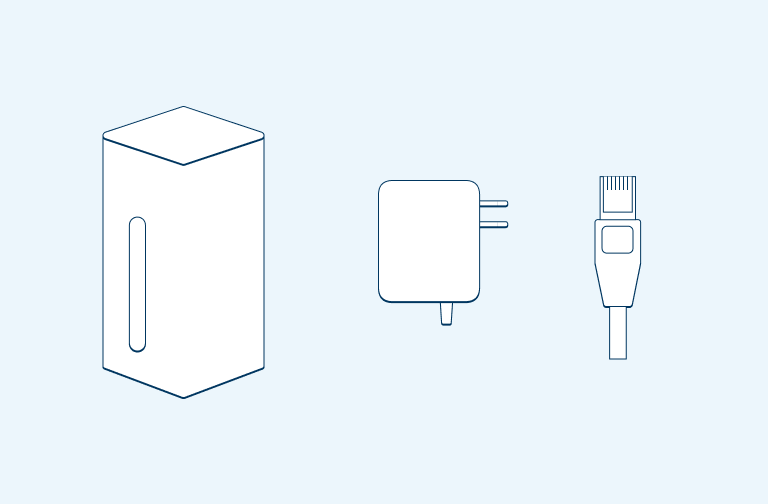
What’s in the box
- 1 x Wireless Broadband modem
- 1 x Ethernet cable
- 1 x Power adapter
Step 1
Placement
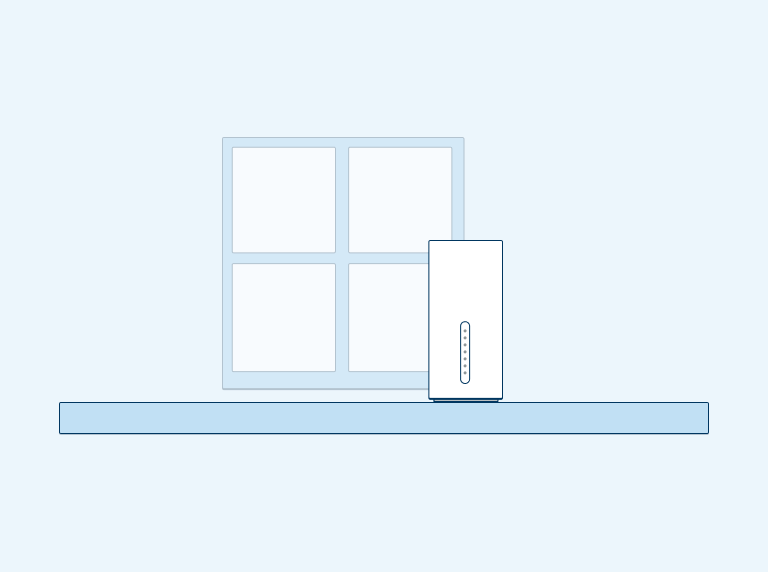
Find a suitable place in your home to place your Wireless Broadband modem. Your signal may be stronger with the modem located close to a window.
Step 2
Power up your Wireless Broadband modem
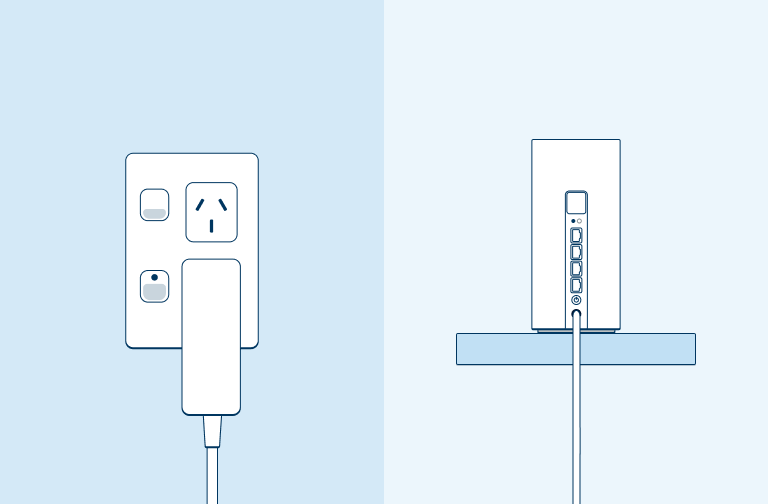
Plug your Wireless Broadband modem into power using the white power adapter. Turn on the Power button on the back of the Wireless Broadband modem.
Step 3
Wait for your modem to connect
Wait 2 minutes for your Wireless Broadband modem to connect to the internet.
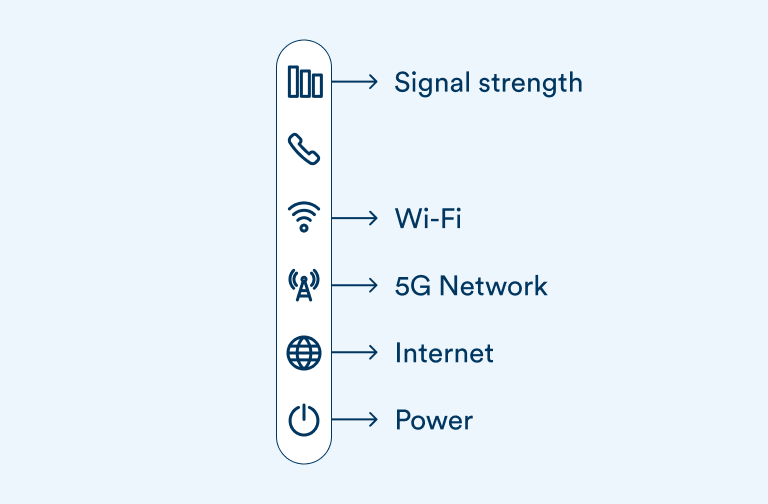
- Signal strength light should be White (excellent) or Green (good)
- If your Wireless Broadband modem is connected, the 5G Network light will be white. If your modem is connected to 4G, the light will be green
- Internet light should be White.
Step 4
Connect to your Wi-Fi network
- Go to the Wi-Fi settings on your mobile device or laptop.
- Connect to the 2degrees Wi-Fi network.
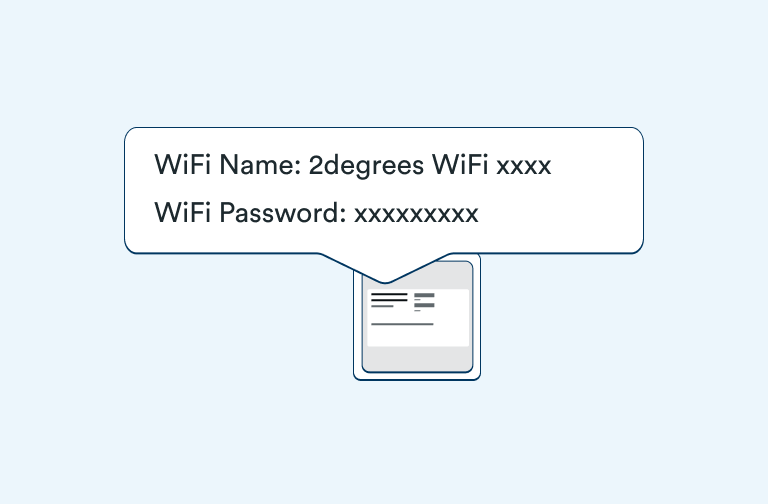
You’ll find the Wi-Fi network name and password printed on the back of your modem. You can use the QR code to connect to Wi-Fi or enter the password in manually.
It may take a few minutes for your network to appear after plugging in your Wireless Broadband modem.
Step 5
Manage your Wireless Broadband modem through the Aginet App
Download and install the Aginet App on your mobile device. Search for Aginet on the Apple App Store or Google Play.
Aginet App will allow you to:
- Run a speedtest on your internet connection
- Change your Wi-Fi Name and Password
- Add parental controls to a connected devices
- Data usage
- Add Wi-Fi Mesh satellite

Troubleshooting tips
- If your Signal strength light is Red, you will need to move your modem to a more suitable place in your home. If you have a 2degrees mobile phone, you can use the signal strength bars to help find the best place to put your modem.
- To boost your Wi-Fi signal to reach more of your home or office, you can get a Wi-Fi Mesh unit.
- If the network light is red, there might be an issue with your connection. Give us a call on 0800 022 022 so we can check it out.