TP-Link Modem VB433v
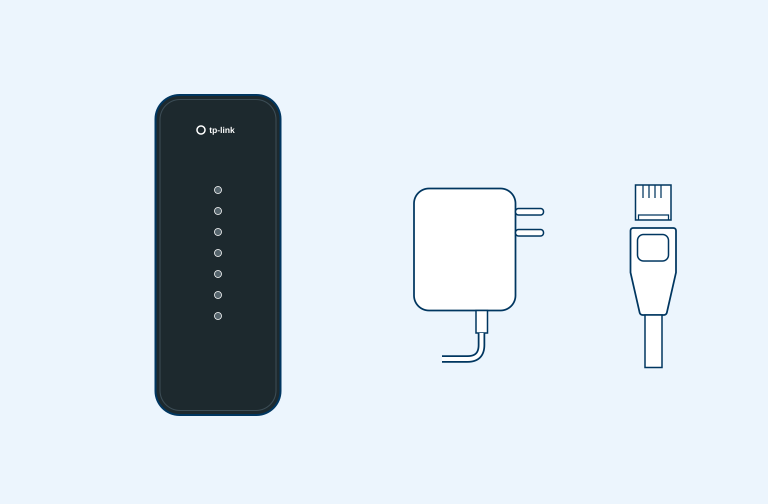
What’s in the box
- 1 x Modem
- 1 x Power adapter
- 1 x Ethernet cable
Step 1
Set up
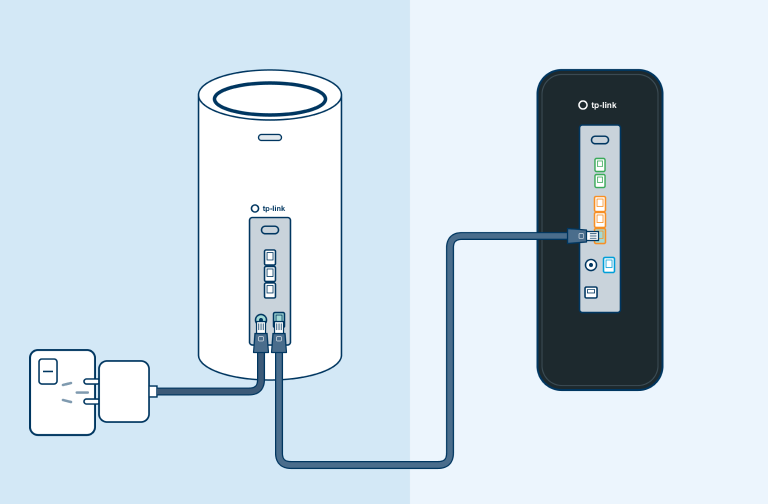
- First locate your Optical Network or ONT (That’s the box on your wall).
- Plug one end of the ethernet cable into the WAN Internet port on your modem
- Then plug the other end to the port labelled LAN1 or GE1 on your ONT box
If you are connecting to VDSL you will need to connect one end of the RJ11 cable to the DSL port on your modem and the other end into the jackpoint on the wall.
Step 2
Plug in and power up
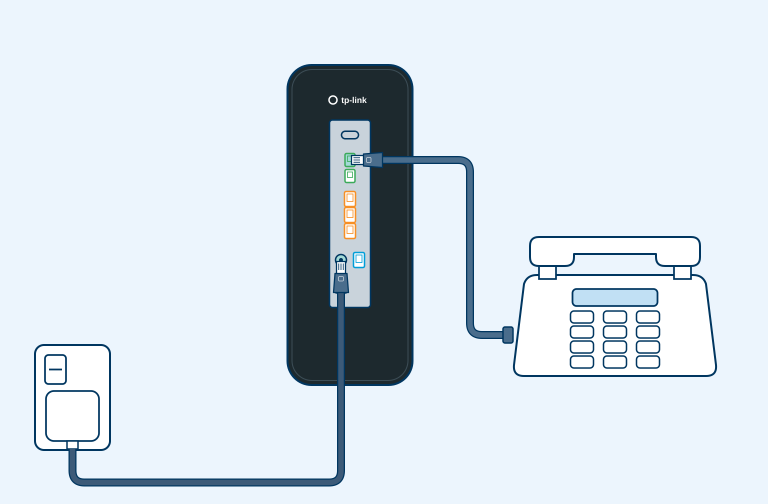
Plug your modem into power using the white power adapter.
Plug the RJ11 cable into the phone port, if you have a landline.
Step 3
Wait for modem to connect
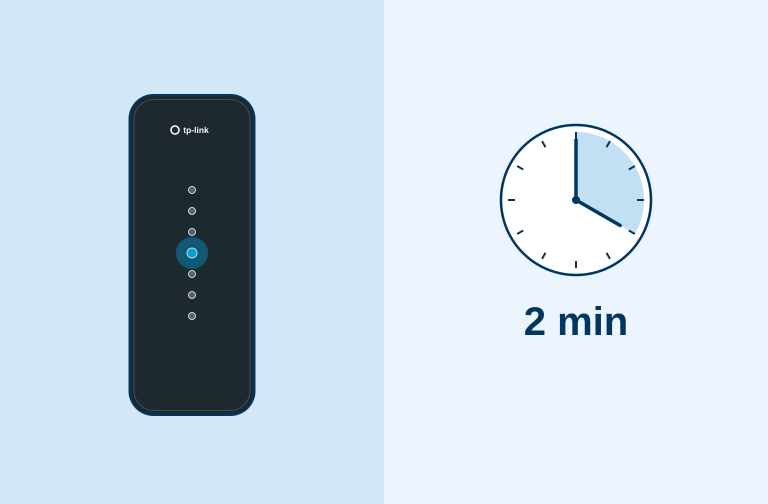
- Wait 2 minutes for your modem to connect to the internet.
- The front internet LED will turn solid blue once connected to the internet.
Note: If the front WAN LED light is not blue after 3 minutes, then there is an issue with the internet connecting. Double check the cable between you ONT box and the WAN port on your modem are clicked in securely.
Step 4
Connect to Wi-Fi
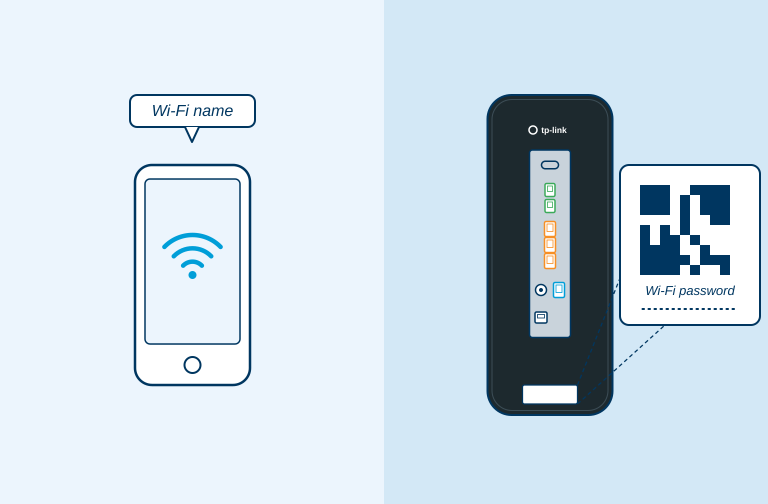
- You’ll find the Wi-Fi network name and password along with a Wi-Fi QR code on the bottom of your modem.
- You can use the QR code to connect to Wi-Fi or go to the Wi-Fi settings on your mobile device or laptop, select network name and enter the password manually.
Note: After plugging in your modem, it may take a few minutes for your modem to connect to the internet, the LED light to turn solid blue and for your network to appear.
Step 5
Adding your mesh device in the Aginet App
Download and install the Aginet App on your mobile device. Search for Aginet on the Apple App Store or Google Play.
Aginet App allows you to:
- Add Wi-Fi mesh extender(s)
- Change your Wi-Fi name and password
- View data usage
- Run a speed test on your internet connection